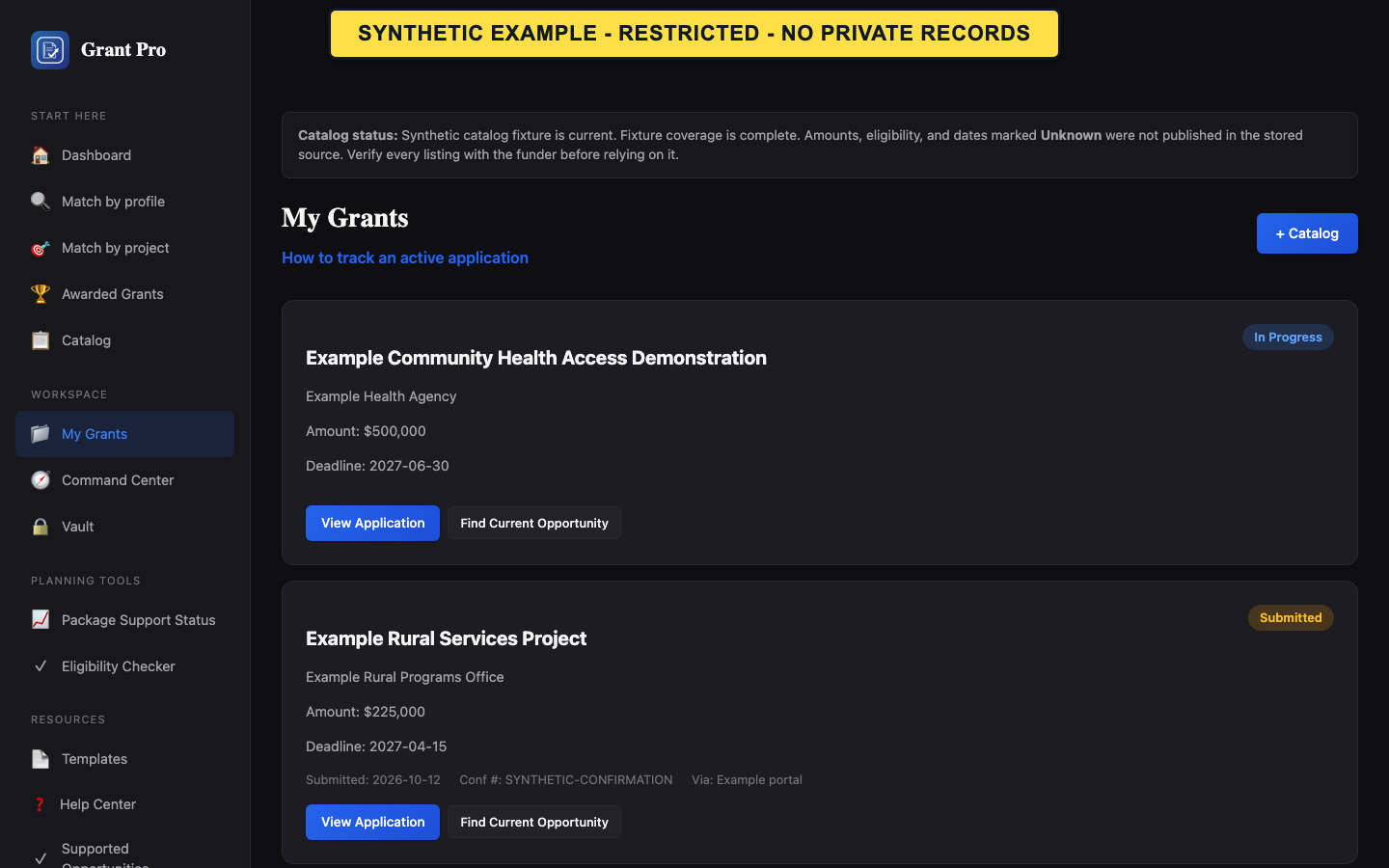
Review the application list
My Grants lists started application workspaces for the selected organization. It is different from Saved Grants, which stores research leads without creating an application workspace.
- Confirm the selected organization before reviewing the list.
- Open My Grants and find the application by title, agency, amount, or deadline.
- Read the status badge and any recorded submission or outcome details.
- Select View Application to review the current workspace before taking another action.
- Draft, research, assigned, extraction, requirements, and in-progress labels describe workspace progress; they do not prove readiness or submission.
- Submitted, Funded, and Rejected are account-recorded outcomes, not agency-verified states.
- Verify the deadline and opportunity facts against the current official notice.
Use the checklist and record an outcome
The submission checklist and status controls are part of the restricted workspace workflow. Use them only for an existing or explicitly enabled workspace. GrantPro does not submit an application or verify an agency receipt.
- Open View Application, then open Submission Checklist when that control is available.
- Work through the required sections, documents, self-certifications, and final review shown for the exact application.
- After an authorized person actually submits through the official portal or paper process, select Record Submission Details and enter the real date, method, and confirmation or tracking number.
- When the funder sends a decision, record Funded with the award amount or Rejected with the notification date and optional reason.
- A checklist percentage reflects the items GrantPro can evaluate; it is not an eligibility, compliance, or award determination.
- Do not mark an application submitted merely because a file was downloaded or shared.
- Reopen My Grants after an ambiguous save instead of repeating the action.
Understand calendar, clone, and share boundaries
These controls do not create a new funding cycle or replace official deadline and submission records.
- For a calendar reminder, rely on a date you verified in the official notice. The current workspace interface does not expose calendar export as a supported visible action, so do not construct a calendar URL manually.
- To pursue a later funding cycle, return to the current catalog opportunity. Workspace cloning is intentionally unavailable because each workspace must be bound to the current opportunity and support status.
- If Share for Review is available, create the read-only link only for the intended reviewer. The legacy application-review link expires after 14 days; package-review links have their own displayed scope and lifetime.
- Return to the signed-in workspace to confirm current access and content. Do not reuse an expired link or treat a shared review as submission.
- Share links can expose draft and budget content to anyone who possesses the link.
- Package sharing remains restricted and follows the final-review screen's current controls.
Recover from an unexpected status
Use the current workspace and official records to determine whether a displayed status is stale, incomplete, or incorrect.
- Open the application from My Grants and compare its detail with the official portal or notice.
- Check the selected organization and application title before changing anything.
- If the state remains inconsistent, contact support with the public opportunity number, task name, approximate time, and visible status. Do not send passwords, share URLs, or private application files through the public contact form.