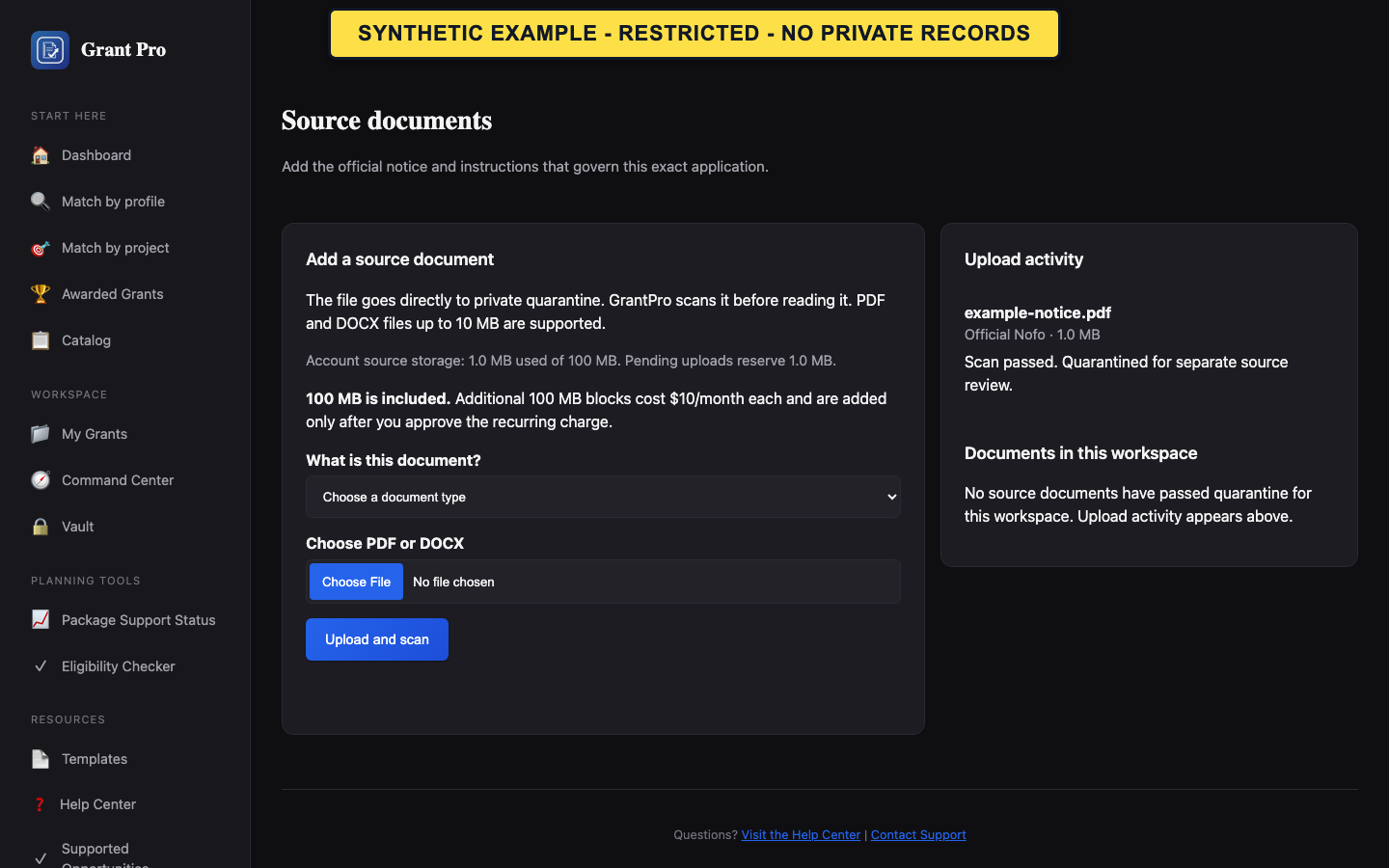
Availability boundary
Source upload, scanning, acceptance, and removal are controlled-validation features. Follow these steps only when GrantPro explicitly opens the source workspace for the selected supported validation opportunity.
- Confirm the opportunity appears in the supported workflow shown to the account.
- Open Source Documents through the enabled workspace navigation.
- Stop if GrantPro shows Workspace Unavailable, storage unavailable, or another controlled-validation boundary.
- A Vault document is not automatically an accepted workspace source.
- Do not use direct URLs to bypass an unavailable screen.
Upload and review status when enabled
An upload is not usable merely because transfer completed. The workspace must show its current processing and review state.
- Choose Add a Source Document and select the correct document type.
- Complete the displayed upload flow once.
- Return to Source Documents and wait for the current status before treating the file as accepted.
- Scanning or processing failure blocks acceptance.
- Verify the displayed filename, source type, and current version before continuing.
If upload, scan, or review fails
Do not repeatedly upload the same file or substitute unrelated documents to clear a blocker.
- Read the current upload attempt and document status.
- Use a visible Resume or Retry control only when GrantPro offers it for that attempt.
- If the state remains failed or unavailable, stop and contact support from the signed-in account without attaching the private document to a public contact request.