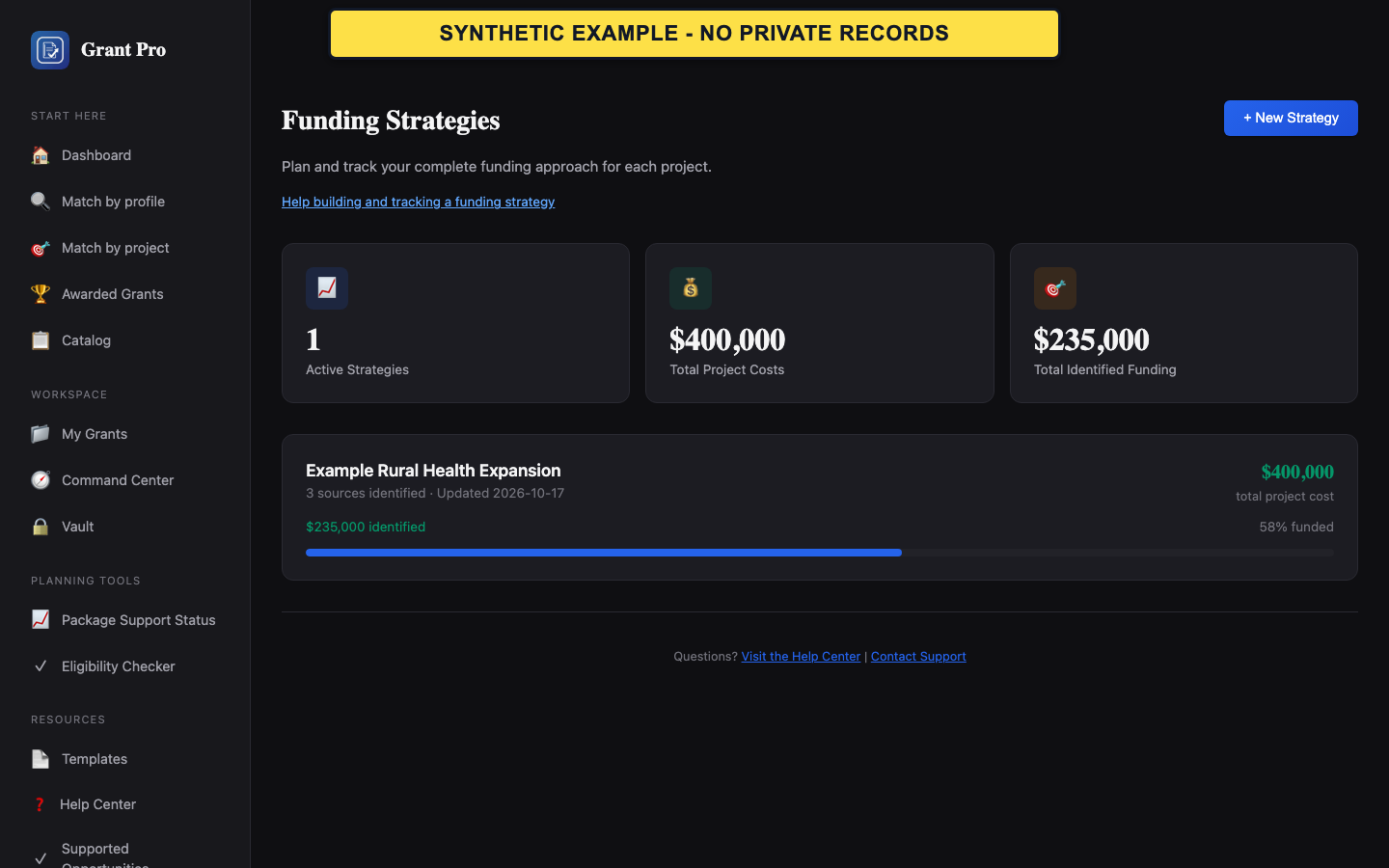
Create a strategy for one project
Funding Strategies is available to signed-in paid accounts. A strategy is an account-maintained planning record; it does not verify that a source will fund the project or that a listed amount satisfies an official match requirement.
- Open Funding Strategy from the signed-in navigation.
- Choose New Strategy.
- Enter a project name and a total project cost greater than zero.
- Choose Create Strategy, then confirm that the new strategy opens with the intended name and cost.
- Create separate strategies for projects with different costs, timelines, or funding mixes.
- Use the current total project cost from the organization's approved planning record; update the strategy when that amount changes.
Add and maintain funding sources
Each source records a name, type, planning amount, notes, and current status. The totals and funding gap come from what the account holder records.
- Open the intended strategy and choose Add Source.
- Enter the source name, source type, planning amount, and useful non-confidential notes such as a public deadline.
- Choose Add Source and verify that the source appears in the funding breakdown.
- Change the status to Identified, Applied, Secured, or Declined when the real-world status changes.
- Use Secured only after the organization has authoritative award or commitment evidence.
- A source marked Applied or Secured is not independently verified by GrantPro.
- Remove a source only after confirming that it is the intended record; removal changes the displayed totals.
Research a match requirement
For an owned grant workspace that exposes Match Funding, the finder calculates a planning estimate and lists possible sources. The official notice controls the actual match percentage, eligible source types, valuation rules, documentation, and deadlines.
- Open Match Funding from the intended grant.
- Enter the grant amount and match percentage stated by the current official notice, then choose Recalculate.
- Compare the displayed federal share, match required, and total project cost with the notice's calculation method.
- Open each possible source's official website and verify current eligibility, availability, terms, and timing before adding it to the strategy.
- A suggested source is a research lead, not an award, commitment, or eligibility decision.
- Confirm that the organization profile has the correct state before relying on location-based suggestions.
- Do not count the same dollars or in-kind contribution twice.
Use the gap as a planning signal
The displayed gap compares the recorded project cost with recorded source amounts. It is not a cash-flow forecast, award confirmation, or compliance opinion.
- Review the Secured, Applied or Pending, Identified, and Remaining Gap totals.
- Open each source and confirm that its amount and status still match current evidence.
- Update changed amounts or statuses before using the gap in a planning meeting.
- If identified amounts exceed the project cost, review the entries for duplicates, overlapping uses, or outdated assumptions.
- Keep notes concise and avoid personal information, credentials, or confidential partner details.
- Use the strategy to organize follow-up; use authoritative source records for decisions and reporting.
Recover from an incorrect or empty result
Validation errors and empty suggestions do not prove that a project has no funding options.
- If a strategy will not save, confirm that the project name is present and the total project cost is greater than zero.
- If the match calculation is wrong, compare the grant amount, percentage, and calculation method with the official notice before editing the inputs.
- If no suggested sources appear, verify the organization state and continue research through authoritative state, federal, foundation, lender, and partner sources.
- If a saved source or total does not match the visible entries after one reload, contact support with the strategy name and visible state, but do not include private documents or credentials.