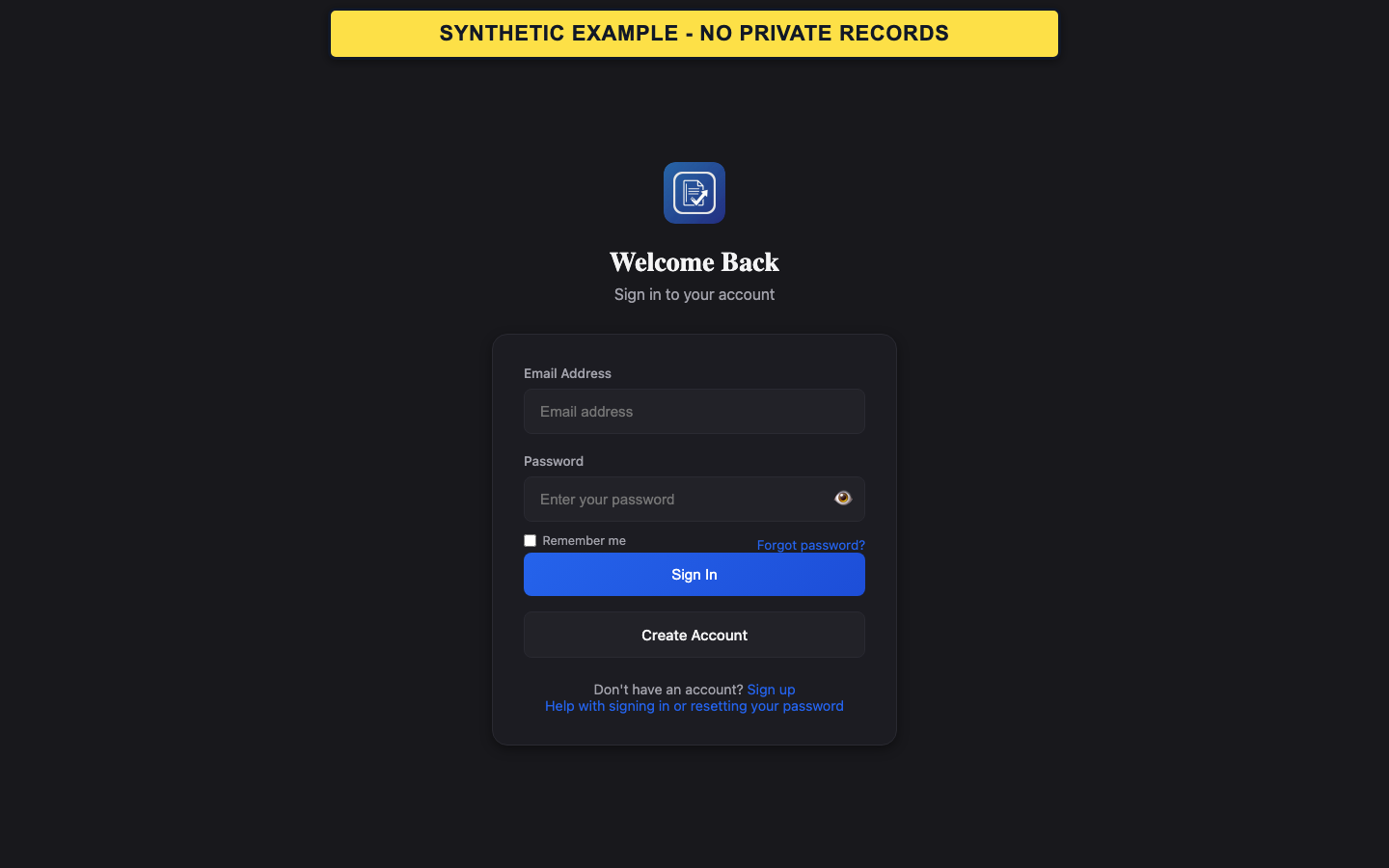
Sign in
Use the method associated with the account. A Google sign-in option, when shown, is separate from password sign-in.
- Open Sign In.
- Choose Google only if that is how you access the account; otherwise enter the verified email address and password.
- Submit once and wait for the dashboard or an on-screen recovery message.
- Repeated guesses can trigger a temporary security limit.
- GrantPro support will not ask for your password.
Request a password reset
Password recovery sends a time-limited link when the account is eligible for password sign-in.
- Select Forgot Password on the sign-in page.
- Enter the account email address and submit the request.
- Open the newest reset message and choose a new password on the linked GrantPro page.
- For privacy, the request screen may not confirm whether an address belongs to an account.
- Use only the newest reset message.
If recovery fails
An invalid or expired link cannot be reused.
- Request one fresh reset message.
- If the account normally uses Google, return to Sign In and choose Google instead of setting a password.
- If neither path works, contact support and describe the visible error without sending credentials or links.