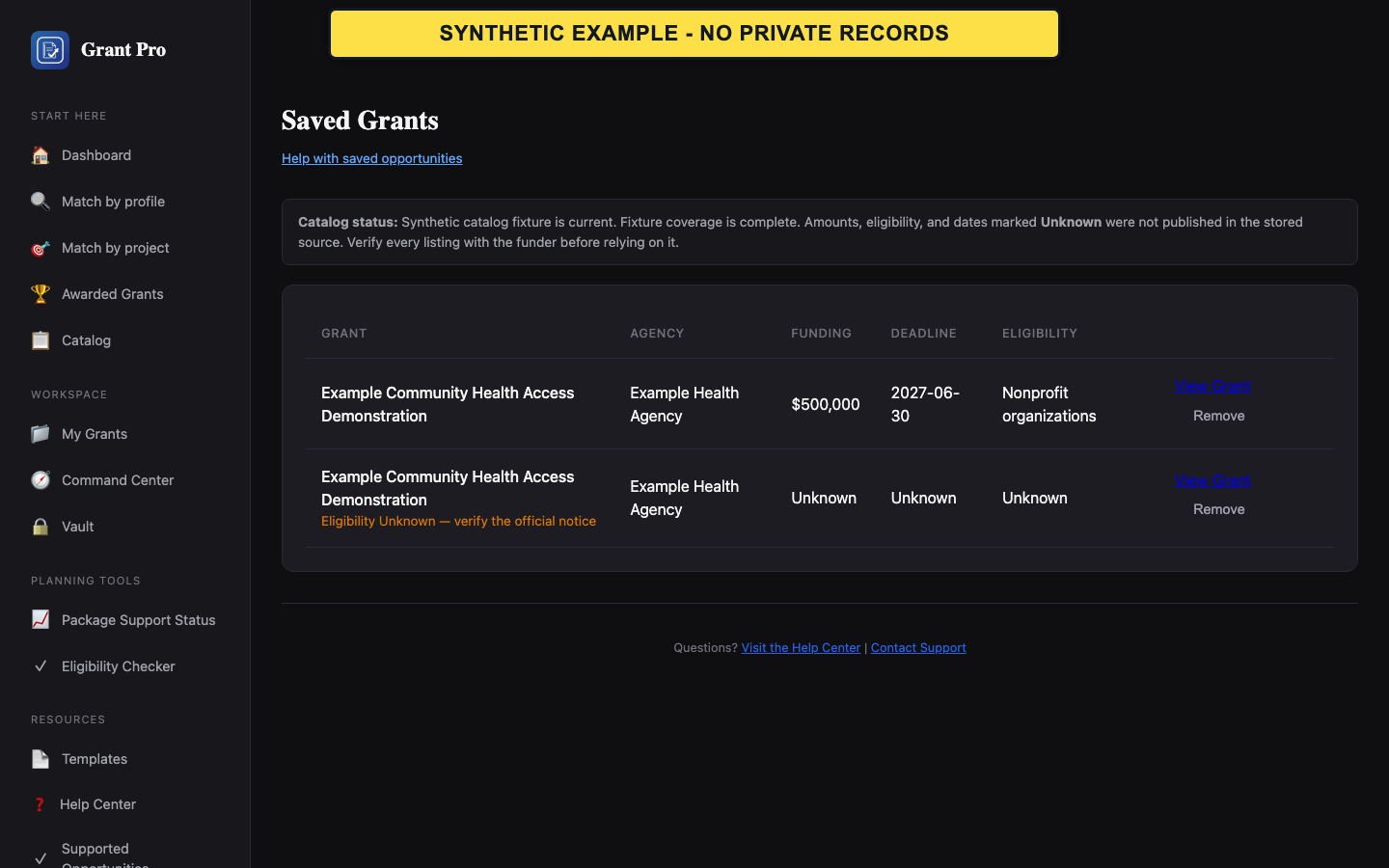
Save an opportunity
Saving creates a research bookmark for the signed-in account. It does not establish eligibility or package availability.
- Sign in and open the catalog or an opportunity detail.
- Choose Save on the intended opportunity.
- Open Saved Grants and confirm that the same opportunity appears.
- Visitors may be asked to sign in before a save can be retained.
- Verify the opportunity number when titles are similar.
Remove a saved opportunity
Removing a bookmark does not change the public catalog record.
- Open Saved Grants.
- Choose Remove or Unsave for the intended opportunity.
- Confirm that it no longer appears in the saved list.
If the result is unclear
A delayed or ambiguous control state should be checked against the saved list before repeating the action.
- Open Saved Grants in the same signed-in account.
- Search the list for the opportunity number.
- Repeat the save or remove action only after confirming the current state. If the state still disagrees, contact support.